Recently I was troubleshooting a network where concerned Admin
complained that they frequently lost connectivity with multiple local
server’s and also sometimes with the Internet. Sometimes pings replies
works okay but latency gets high or timeout / breaks occurs. So I
decided to setup mrtg base ping graph to monitor ping latency. The
custom made mrtg ping probe worked fine and can provide an overview on
target ping / rtt and Downtime in a nice manner, its sample can be
viewed at
http://www.billing.onmypc.net/mrtg/ . . .


 BUT . . . . . . . . . . . . . . . . . . .
I was thinking far ahead , I was thinking for much more advanced
latency and quality graphs which can show ping latency / rtt / loss in
much more detailed way. I recalled my memory from old days when I used
to monitor my old network with variety of tools and scripts and suddenly
a name popped in my mind ”
SMOKEPING ” , yes this was the tool I was looking for.
SmokePing generates graphs that can reveal the
quality (packet loss and latency variability) & reachability of your
IP address from several distributed locations.
SmokePing
is a network latency monitor. It measures network latency to a
configurable set of destinations on the network, and displays its
findings in easy-to-read Web pages. It uses
RRDtool as
its logging and graphing back-end, making the system very efficient. The
presentation of the data on the Web is done through a
CGI with some
AJAX capabilities for interactive graph exploration.
In this article I will show you howto install smokeping on
FEDORA 10.
HOWTO INSTALL SMOKEPING on FEDORA 10
Installing Smokeping is relatively simple. Just issue this command as root.
and It will install smokeping along with all other tools and
dependencies it requires. It may download for about 18-20 Mb of data
from internet, It may take few minutes depending on your internet
connection and system speed.
NOTE:
selinux is the Problem. By default its enabled in Fedora installation. Disable it by editing
and change the enable to disable as following.
(Restart your nix box.)
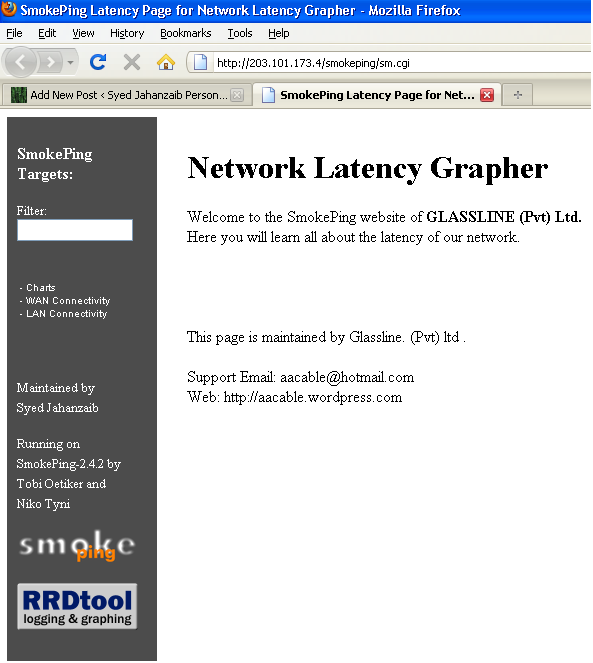
After installation completes, You can access it via
You will see something similar as shown in the following screenshot.

NOTE: If you get “Access Denied: You don’t have permission to access this Folder” error, edit the following line.
1
|
nano /etc/httpd/conf.d/smokeping.conf
|
and remove all lines in this file , and paste the following.
1
2
3
4
5
6
7
8
9
10
11
12
13
14
15
16
|
<Directory "/usr/share/smokeping">
order deny,allow
allow from 127.0.0.1
allow from all
</Directory>
<Directory "/var/lib/smokeping">
order deny,allow
allow from 127.0.0.1
allow from all
</Directory>
ScriptAlias /smokeping/sm.cgi /usr/share/smokeping/cgi/smokeping.cgi
ScriptAlias /smokeping/tr.cgi /usr/share/smokeping/cgi/tr.cgi
Alias /smokeping/images /var/lib/smokeping/images
Alias /smokeping /usr/share/smokeping/htdocs
|
Save & exit. Now restart apache web server by
Now try to access the smokeping cgi, it will open properly.
Now It’s time to add your target in Smokeping for monitoring. The default location for the Smokeping config file is
/etc/smokeping/config, Now just for example, we will edit this file.
1
|
nano /etc/smokeping/config
|
Remove all the lines in it and paste the following lines
1
2
3
4
5
6
7
8
9
10
11
12
13
14
15
16
17
18
19
20
21
22
23
24
25
26
27
28
29
30
31
32
33
34
35
36
37
38
39
40
41
42
43
44
45
46
47
48
49
50
51
52
53
54
55
56
57
58
59
60
61
62
63
64
65
66
67
68
69
70
71
72
73
74
75
76
77
78
79
80
81
82
83
84
85
86
87
88
89
90
91
92
93
94
95
96
97
98
99
100
101
102
103
104
105
106
107
108
109
110
111
112
113
114
115
116
117
118
119
120
121
122
123
124
125
126
127
128
129
130
131
132
133
134
135
136
137
138
139
140
141
142
143
144
145
|
*** General ***
owner = Syed Jahanzaib
contact = aacable@hotmail.com
mailhost = smtp.ptcl.com
sendmail = /usr/sbin/sendmail
imgcache = /var/lib/smokeping/images
imgurl = /smokeping/images
datadir = /var/lib/smokeping/rrd
piddir = /var/run/smokeping
smokemail = /etc/smokeping/smokemail
tmail = /etc/smokeping/tmail
syslogfacility = local0
*** Alerts ***
to = root@localhost
from = root@localhost
+someloss
type = loss
pattern = >0%,*12*,>0%,*12*,>0%
comment = loss 3 times in a row
*** Database ***
step = 300
pings = 20
# consfn mrhb steps total
AVERAGE 0.5 1 1008
AVERAGE 0.5 12 4320
MIN 0.5 12 4320
MAX 0.5 12 4320
AVERAGE 0.5 144 720
MAX 0.5 144 720
MIN 0.5 144 720
*** Presentation ***
template = /etc/smokeping/basepage.html
+ charts
menu = Charts
title = The most interesting destinations
++ stddev
sorter = StdDev(entries=>4)
title = Top Standard Deviation
menu = Std Deviation
format = Standard Deviation %f
++ max
sorter = Max(entries=>5)
title = Top Max Roundtrip Time
menu = by Max
format = Max Roundtrip Time %f seconds
++ loss
sorter = Loss(entries=>5)
title = Top Packet Loss
menu = Loss
format = Packets Lost %f
++ median
sorter = Median(entries=>5)
title = Top Median Roundtrip Time
menu = by Median
format = Median RTT %f seconds
+ overview
width = 600
height = 50
range = 10h
+ detail
width = 600
height = 200
unison_tolerance = 2
"Last 3 Hours" 3h
"Last 30 Hours" 30h
"Last 10 Days" 10d
"Last 400 Days" 400d
*** Probes ***
+ FPing
binary = /usr/sbin/fping
*** Slaves ***
secrets=/etc/smokeping/smokeping_secrets
+boomer
display_name=boomer
color=0000ff
+slave2
display_name=another
color=00ff00
*** Targets ***
probe = FPing
menu = Top
title = Network Latency Grapher
remark = Welcome to the SmokePing website of <b>GLASSLINE (Pvt) Ltd.</b> <br> Here you will learn all about the latency of our network.<br><br><br><br><br> This page is maintained by Glassline. (Pvt) ltd . <br><br>Support Email: aacable@hotmail.com<br>Web: https://aacable.wordpress.com
### YOU CAN CHANGE THE FOLLOWING ACCORDING TO YOUR NETWORK ###
+ Ping
menu = WAN Connectivity
title = WAS Side Network
++ yahoo
menu = yahoo
title = yahoo ping report
host = yahoo.com
++ google
menu = google
title = Google ping report
host = google.com
### YOU CAN CHANGE FOLLOWING ACCORDING TO YOUR NETWORK ###
+ Ping2
menu = LAN Connectivity
title = LAN Side Network
++ Mikrotik
menu = Mikrotik
title = Mikrotik PPP ping report
host = 10.10.0.1
++ Proxy
menu = Proxy
title = Proxy Server ping report
host = 10.10.0.2
++ Billing
menu = Billing
title = Radius billing Server ping report
host = 10.10.0.2
|
Now restart smokeping process by
1
|
/etc/init.d/smokeping restart
|
Default update time for all ping probes are 5 Minutes. Try accessing
the main smokeping page after 5-10 minutes so it can create necessary
RRD for targets and update its graphs.
Now click on LAN connectivity to open graphs. You will see something similar as shown in the following screenshot.

Now, Click on WAN Connectivity

Now click on the Yahoo Ping Graph showing on Right to get more detailed graph report.

To get more detailed view, click on
Last 3 hours
graphs, It will open this graph in NAVIGATOR mode. Now here you can
select any specific area to zoom to troubleshoot at exact which time the
latency problems occurs. For example in the following screenshot you
can see the blue dots which shows that ping timeout occurs at specific
time.
PULL DATA FROM SPECIFIC TIME
A client complained that the internet worked very slow in the morning
at 10:30am. So you can pull data from smokeping graph to validate the
complain or to troubleshoot what exactly happened at 10:30am
:)

As you can see the blue dots showed that the ping breaks occured in the specific timings.
There are so many interesting things you can do with SMOKE-PING.
For some more examples , please visit the author web site @
Take Care, n ALLAH HAFIZ
Regard’s
Syed Jahanzaib
aacable@hotmail.com




Comment by Pinochio~:) — November 13, 2011 @ 8:26 AM
Comment by Oronti Adewale — November 22, 2011 @ 6:45 AM